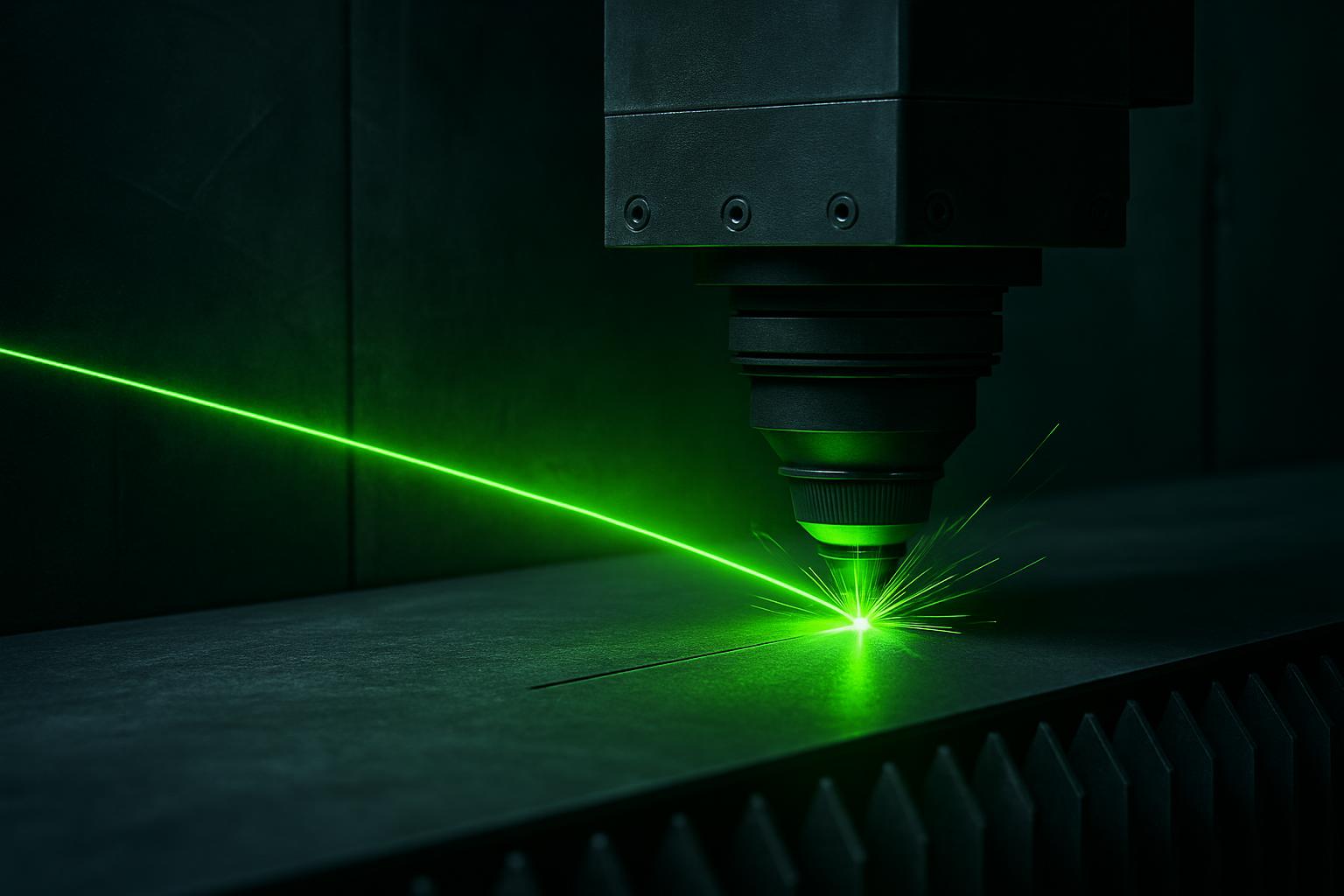
EngraveFab 50 fixtures
To get the best results from your EngraveFab 50, start with the right fixture. Good workholding means consistent, accurate, and safe engraving every time.
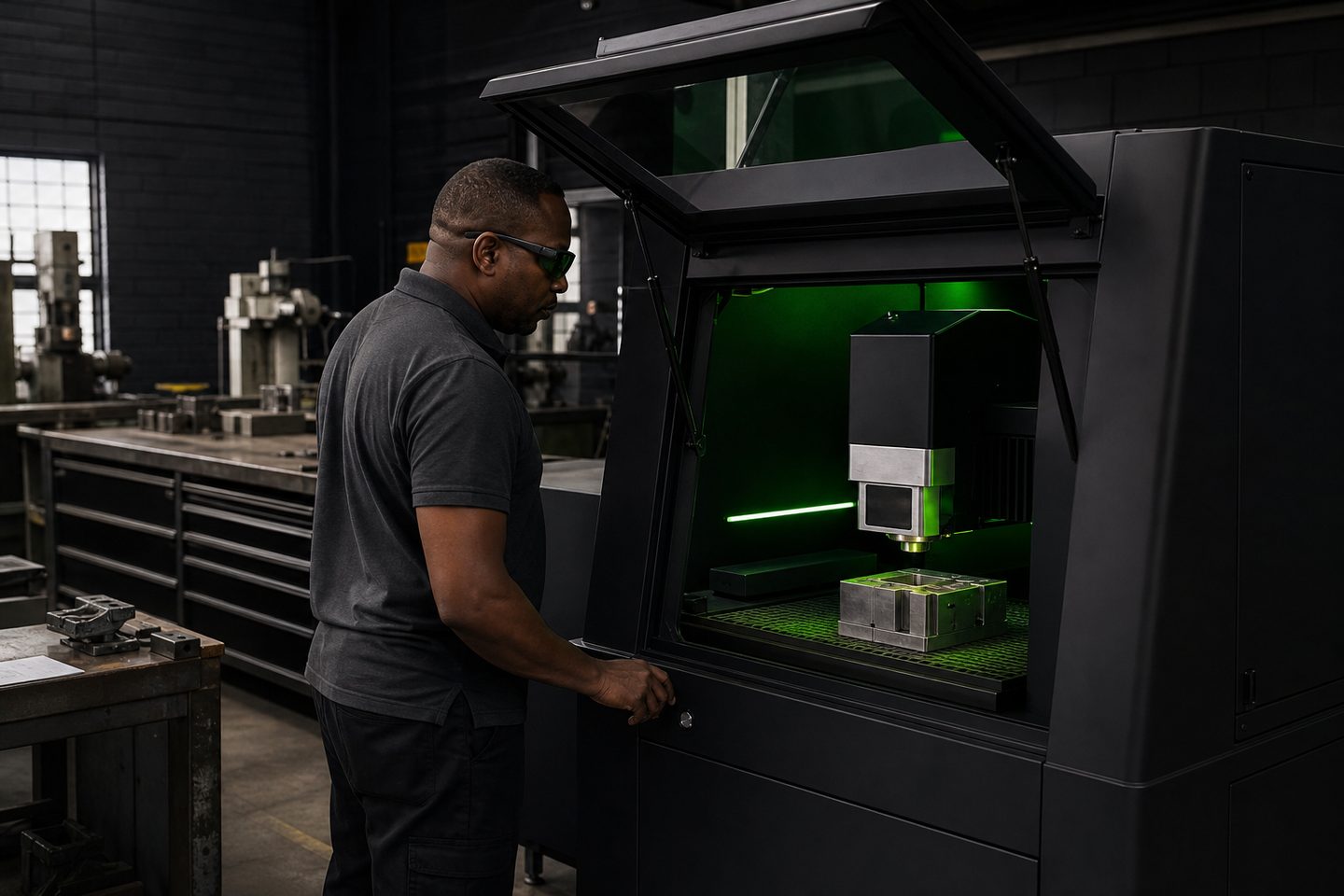
Browse materials, jaws, straps, and rotary kits.
- Flat fixture cues
- Rotary / clamp limits
- First-article photo notes
Also see beam notes and projects.
Why proper fixturing matters for engraving
A stable and well-designed fixture is crucial for every deep engraving job on the EngraveFab 50. Without proper workholding, the part can shift during marking, leading to double images, uneven depth, or lost alignment. This matters even more when you are running batches or repeating serial numbers, as small slips lead to wasted material and rework.
Repeatability relies on the part sitting in exactly the same place for every cycle. Proper fixturing also keeps your hands clear of the beam path, which is essential as the EngraveFab 50 is a Class 4 open cell. Make sure every operator knows where their fingers are before starting a cycle.
Common fixture types for EngraveFab 50
The EngraveFab 50 works with a range of fixture types, depending on your parts. For flat plates and blanks, a simple nest plate with edge stops or dowels will keep items steady. For round or irregular parts, custom jigs or soft jaws help hold the workpiece without damaging its surface.
If you are engraving cylindrical items like shafts or bushings, a rotary chuck attachment keeps the piece centred while rotating. Quick-release clamps and adjustable straps work well for odd shapes and short runs. Avoid clamping too tight, as thin parts can buckle under pressure.
- Nest plates with fixed stops for flat work
- Quick clamps for repeat jobs
- Rotary chucks for round parts
- Soft jaws for delicate surfaces
- Adjustable straps for odd shapes
Steps to set up and check a fixture
Before your first article, start by cleaning both the fixture and the workpiece to remove oil or dust. Place the part in the fixture and check that it sits flush with all reference points. Tighten clamps so the piece is secure but not deformed.
Run a dry cycle with the laser shutter closed to check alignment and clearances. Its easy to forget to check for collision under the head, so move the axes by hand once before starting the real marking. Capture a reference photo of the setup for future batches.
Record fixture details, part orientation, and settings in your first-article log. This step helps when you need to repeat the job or troubleshoot any issues later.
- Clean fixture and part
- Check flush fit and reference alignment
- Tighten clamps without distortion
- Run a dry cycle for clearance
- Take a setup photo
- Log fixture details
Avoiding common fixture mistakes
One of the biggest mistakes is fixturing too loosely, which lets the part move during engraving. Even a half-millimetre shift can leave a visible double mark. On the other hand, overtightening can warp thin items or damage delicate coatings.
Missing the daily check on fixture wear is another slip: worn soft jaws or dirty nest plates cause misalignment over time. Watch out for the habit of swapping parts without rechecking the clamp positions, especially in busy shifts. Always check for stray offcuts or old labels stuck to the fixture before starting a new run.
- Do not under- or overtighten clamps
- Inspect fixtures for wear or debris
- Recheck positions after part swaps
- Never engrave with loose or unstable parts
What our Fibre Laser customers say
Verified Google reviews