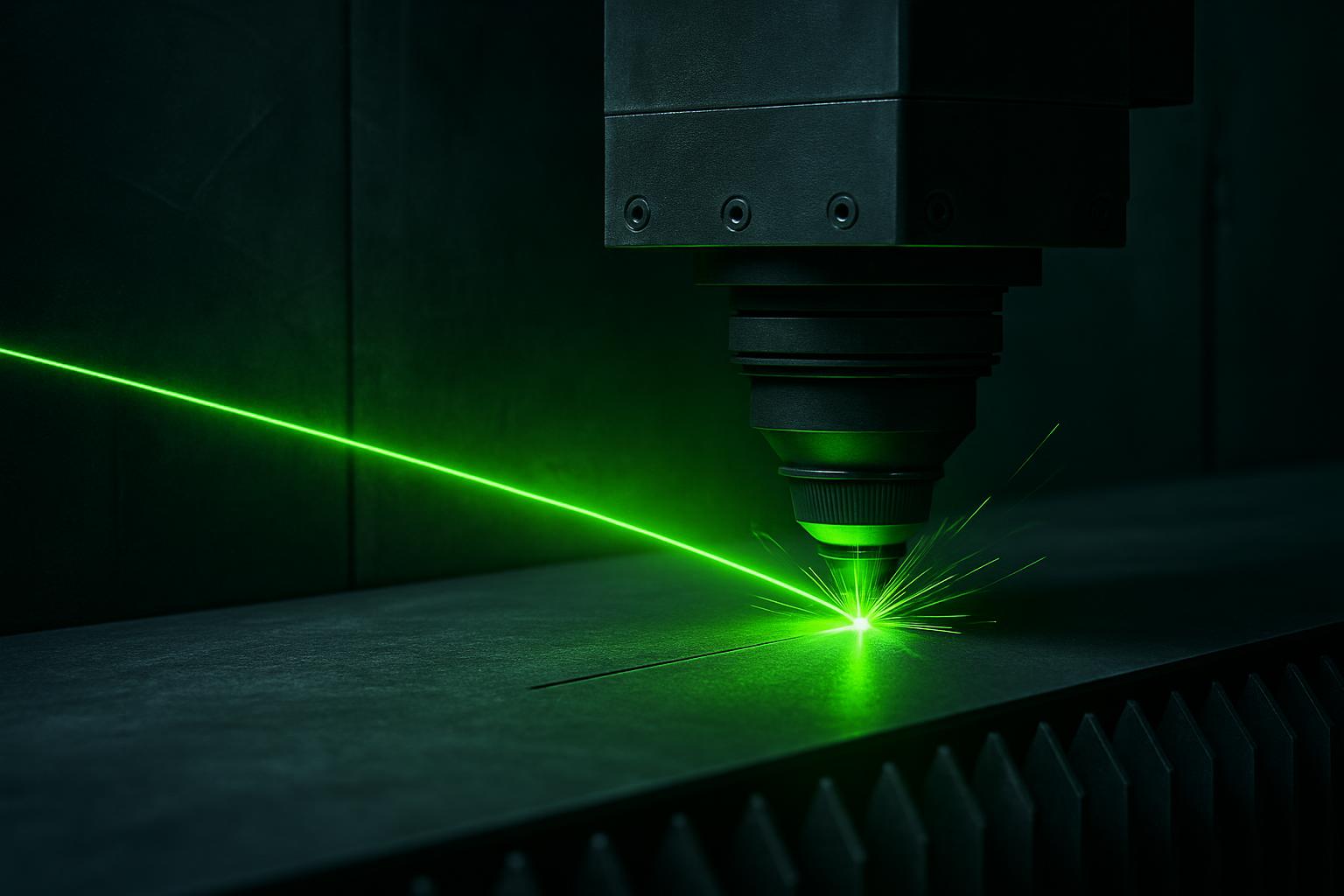
BeamDesk Mini fixtures
Good fixturing is the key to clear, accurate marking with BeamDesk Mini. Here’s a guide for setting up and choosing fixtures that work in real South African workshops.
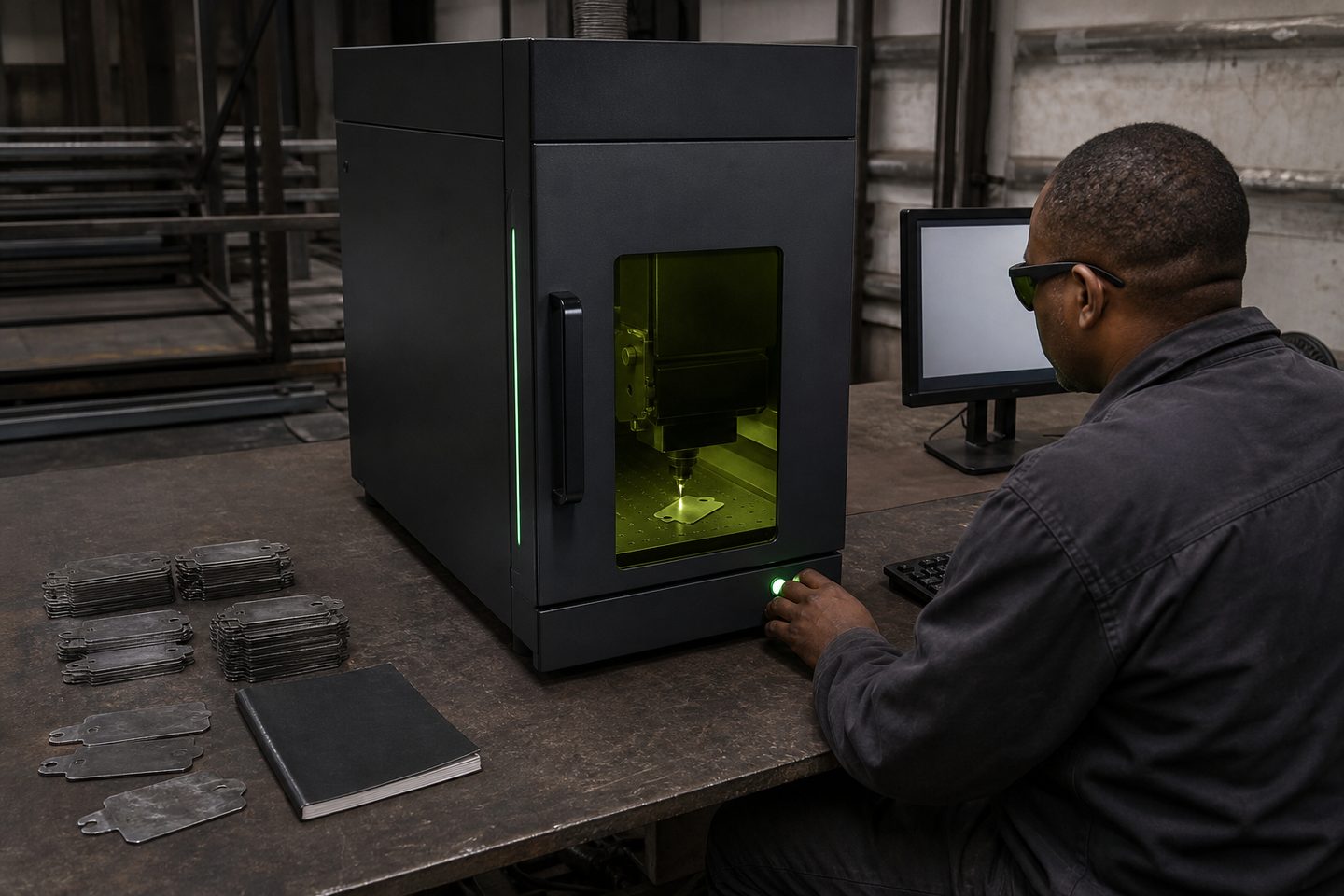
Browse materials, jaws, straps, and rotary kits.
- Flat fixture cues
- Rotary / clamp limits
- First-article photo notes
Also see beam notes and projects.
Why fixturing affects every mark
A solid fixture is the difference between a crisp, repeatable mark and a blurry or misplaced result. BeamDesk Mini relies on keeping your part perfectly flat and steady during each cycle. Even a small wobble or tilt throws the mark out of focus, and that’s impossible to fix after the laser has run.
Repeatability also matters for serial numbers, barcodes and logos. If the part shifts between cycles, you’ll spend more time re-setting than marking. Proper fixturing also helps protect the lens and head from knocks, especially in a busy bench setup.
Fixture types that suit BeamDesk Mini
BeamDesk Mini supports a range of workholding, from flat jigs to rotary chucks for small shafts or rings. For flat plates, a basic nest plate or a magnetic clamp can centre the piece and hold it steady. For small round items, a simple rotary kit fits on the bench and lines up with the marking head. Foam pads or soft jaws can steady delicate pieces without scratching anodised or plated surfaces.
Straps or toggle clamps work well for quick swaps, and slot-in nest plates let you queue up a run of similar blanks. Most users keep a few spare nest plates drilled for their most common jobs, so the swap-over is quick. Don’t forget to match any rotary fixture to the laser focus height, or you’ll spoil the mark.
- Flat nest plates for regular shapes
- Rotary chucks for rings and shafts
- Magnetic clamps for thin sheet
- Straps or toggle clamps for quick changes
- Foam pads or soft jaws for delicate parts
Setting up your fixture for a first article
Before any production run, always set up and check your fixture with a first-article part. This step saves time and scrap. Here’s a quick setup routine:
Some workshops skip the part clean before marking, but fingerprints or oil make the mark look patchy. Take a photo of each setup for your job log, so you can repeat it later without guessing.
- Check the fixture is stable and can’t move or tip
- Clean the part surface before clamping
- Align the mark area dead centre under the lens
- Set the laser focus height to the part’s surface
- Clamp firmly, but dont over-tighten and distort the part
- Do a dry run with the lid open and pointer on, then run a test mark
Common fixture faults in autofeed cutting and how to prevent them
The most common problem is over-clamping. Too much pressure bends thin parts, so you lose focus and the mark comes out fuzzy. Under-clamping lets the part vibrate, especially when engraving deep or running at higher speed. Make sure every clamp or nest plate matches the job size and shape.
Another slip is skipping the focus check. If you change fixture height or swap parts, always reset the focus. A wrong height wastes material and gives inconsistent results. Last, keep fixtures and parts free of dust or filings: fibre lasers are sensitive to debris on the optical path.
What our Fibre Laser customers say
Verified Google reviews